The Transvirtual Homepage
Transvirtual Homepage
SUMMARY / PURPOSE
Use this article to familiarize yourself with the Transvirtual homepage and its key features.
BEFORE YOU BEGIN
Ensure the following prerequisite is met:
- You have a username and password from your company administrator
STEP-BY-STEP INSTRUCTIONS
Step 1: Login to Transvirtual
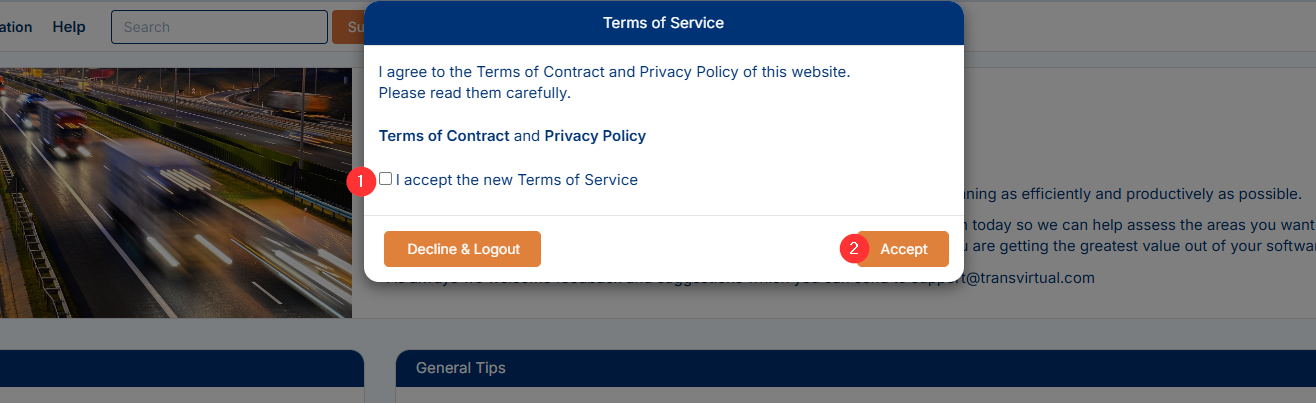
Step 2: Accept the Terms of Service
1. Tick on the box
2. Click the 'Accept' button
HOMEPAGE OVERVIEW
The homepage includes the following elements:
1. Company Logo - Click the logo to return to the homepage.
2. Menu Ribbon - Access different functions within Transvirtual. Hover over a menu item to view available options:

NOTE: The ribbon displays different options depending on your user permissions. The screenshot above shows the full menu available to SuperAdmins.
3. Search Bar - Search for consignments, invoices, manifests, user cards, and other records.
4. Personal Account Settings - Modify your user settings or log out of your account.
5. Quick Links - Shortcuts to commonly used functions from the menu ribbon.
6. Todays Highlights - View your company's activities for the current day.
7. System Information - Display your company's Transvirtual account information.
COMMON ISSUES & TROUBLESHOOTING
Issue: Cannot login and seeing this error message (see below).
Cause: Either the username, password or both are inaccurate
Resolution:
1. Use the Forgot Password feature
2. If this does not resolve the issue, contact your company's admin so they can provide you your username and a fresh new password
2. If this does not resolve the issue, contact your company's admin so they can provide you your username and a fresh new password