Location Booking Requirements
Summary / Purpose
Location Booking Rules allow you to automatically flag consignments as Booking Required based on predefined rules.
When configured, this rule populates the Booking Required field across consignment search and other operational screens, helping teams identify consignments that require a booking to be delivered. e.g. a dock or delivery booking time
Outcome
Once configured and enabled:
- Consignments matching the rule will automatically display Booking Required = Yes
- The field will be visible on consignment search and filtering pages
- The flag may also appear in other operational views, such as pickup allocation
Step-by-step Instructions
Step 1: Set Up the Location Booking Rule
- Navigate to Configuration > Rules and Automation > Location Booking Requirements
- Select Create New Rule
- Define the rule criteria:
- Location type (Pickup, Delivery, or both)
- Any additional conditions required for booking
- Click on Update to save the rule
Result:
The rule is created but not yet active.
Step 2: Enable the Rule
- Locate the newly created Location Booking Rule
- Toggle the rule status to Enabled
- Click on Update to save the rule
Result:
The system will now apply this rule to newly created consignments that meet the criteria.
Step 3: Add "Booking Required" to the Consignment Search Page
To make the rule visible in searches and filters:
- Navigate to Consignment Search / Consignment Filter
- Open Column Settings or Field Selector
- Add the Booking Required column
- Save your view or layout preferences
Result:
The Booking Required column will now display Yes / No against each consignment.
Step 4: Create a Consignment
- Create a new consignment as normal
- Use a pickup or delivery location that matches the Location Booking Rule
- Save the consignment
Result:
- The Booking Required field is automatically populated
- The consignment will display Booking Required = Yes in search results and filters
Important
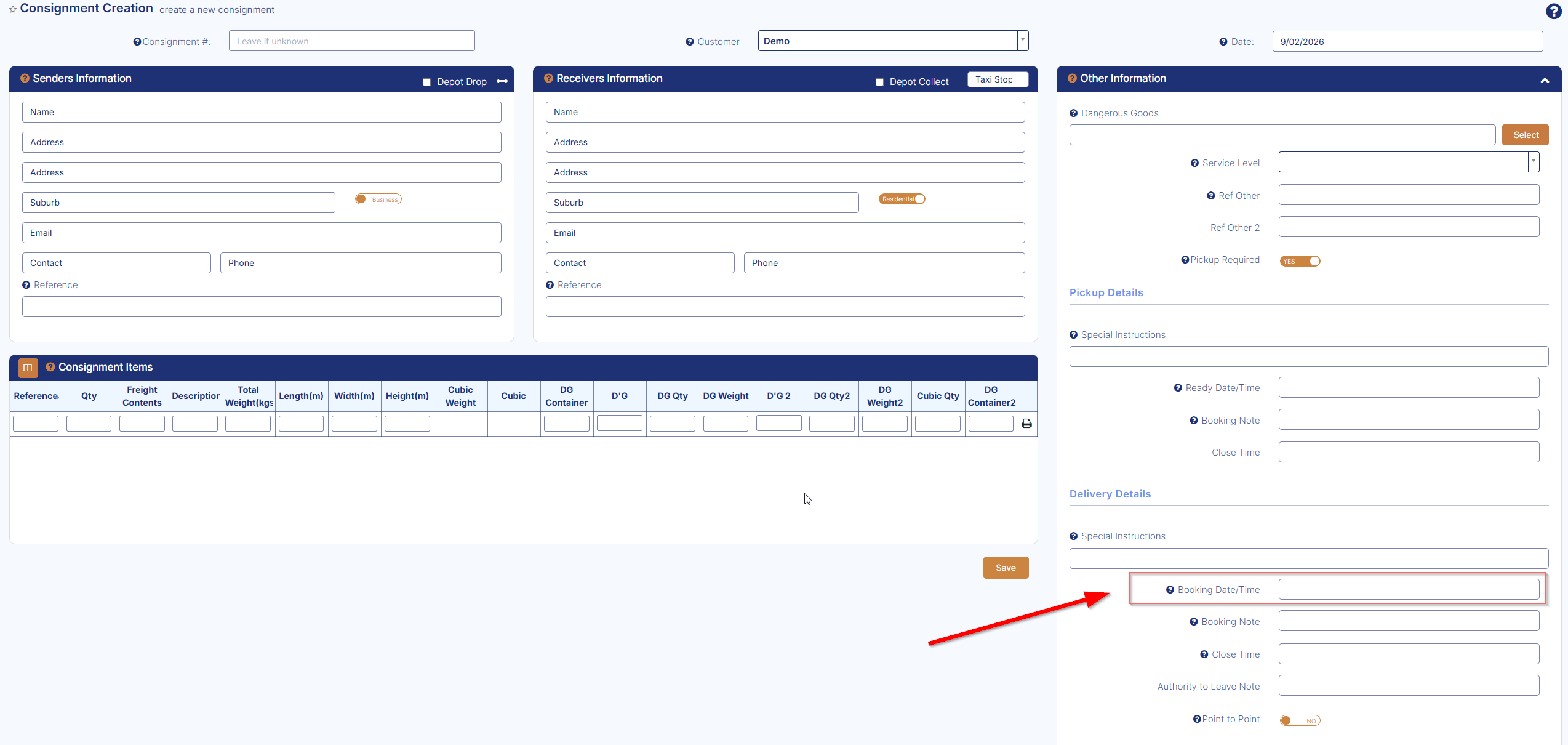
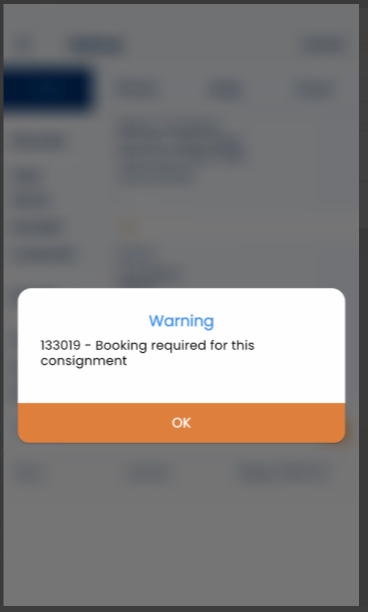
If a booking date and time has not been added to the consignment, the driver app will display a pop-up notification when the driver attempts to load the freight for delivery. This prompt requires the driver to enter a booking before they can proceed.
Note
- The Booking Required field may also be visible in:
- Pickup Allocation
- Operational planning screens
- Other consignment-related views, depending on configuration
- Existing consignments may require review or reprocessing depending on rule timing
- Only enabled rules will apply to new consignments