Customer Invoicing
CUSTOMER INVOICING
SUMMARY / PURPOSE
This guide explains how to identify pricing issues, approve invoices, make edits, and understand invoice statuses and filters.
OVERVIEW
Transvirtual may occasionally produce unexpected prices or no pricing for a consignment.
Pricing issues are highlighted in the invoice window and can be reviewed under Finance > Administration > Transport Price Reviews
STEP-BY-STEP INSTRUCTIONS
1. Identify Rating/Pricing Issues
- Open the consignment's $Finance tab.
- Review the Rating Notes box under Additional Info - this box lists the various steps used to generate a price
- Top line: Rate card name (e.g., "Standard Rates") and Service Level (e.g., "Express 1 day")
- Next line: Route and zones (e.g., NSW → NSW)
- Subsequent lines: Item prices (e.g., "1 Pallet @ $100.00")
- 1 Pallet @ $100.00 = $100.00
- 1 Carton @ $6.00 = $6.00
- Common Scenarios:
- Suburbs not assigned to zones - Assign correct zones to consignment suburbs
- If the system cannot match the suburbs to zones, check the From and To suburbs on the consignment are assigned to a zone in the customer's rate card.
-
No rate for item descriptions - Ensure freight items match consignment items or a default freight item is set.
-
If the system finds a zone but no rate for the consignment’s item descriptions, check that the freight items in Step 2 match the consignment items or that a default freight item is set for unmatched items.
-
Partial match - Identify missing item rates or set default freight item.
-
If a rate is found for some items but not all, identify matches for the remaining consignment descriptions by updating freight item descriptions or adding a default freight item.
2. Approving an Invoice
Approving an invoice should only be done once the invoice has been manually checked to ensure that the pricing is correct.
- Open the invoice by going to Finance > Operational Tasks > Customer Invoices OR Supplier Invoices.
- Double click the invoice
- Review Invoice Info at the top left of the page
- Check all pricing for accuracy (any pricing issues)
- If no issues and invoice is accurate, click on Approve and Lock Invoice button

The Approve and Lock button appears only after closing an invoice. Close invoices manually via the toggle on the upper right corner of the Invoice Info.
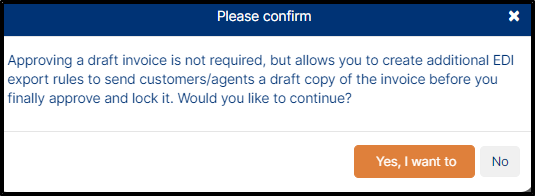
- A confirmation pop-up box will show. Approving and locking an invoice triggers EDI rules. These rules may send the invoice to customers or export data to your accounts package (e.g., MYOB or Xero). Review all pricing carefully before approving.
- Confirm by selecting Yes, I want to to confirm.
3. Edit an Approved Invoice
You can edit an invoice after it has been approved and locked. Review consignment pricing before approval whenever possible. If changes are required, un-approve the invoice first.
 IMPORTANT: If an invoice is changed after it has been approved and locked, it will not be automatically re-sent to customers or updated in the accounts package. These actions must be completed manually.
- Search for the Invoice
- Use the search bar or filters (Invoice Number, Customer Name, Date Range)
- Alternatively, go to Finance > Operational Tasks > Customer Invoices or Supplier Invoices, depending on the invoice type. Enter the invoice number in the Invoice Number field and press Enter to search.
- If you do not know the invoice number, use other search fields such as Customer Name, or adjust the Date Range to locate the invoice.
- Once the invoice is found, the system will open the invoice page. Click the Un-Approve? button to enable editing of the invoice.
NOTE: Check the Additional tab for information on triggered EDI rules. If the invoice is Approved and Locked, an EDI rule may have already sent the invoice to the customer or agent. Notify them if you are amending the invoice and plan to resend it to avoid confusion.
- After clicking the Un-Approve? button, a confirmation pop-up will appear. Enter the Invoice Number manually and click Un-approve. 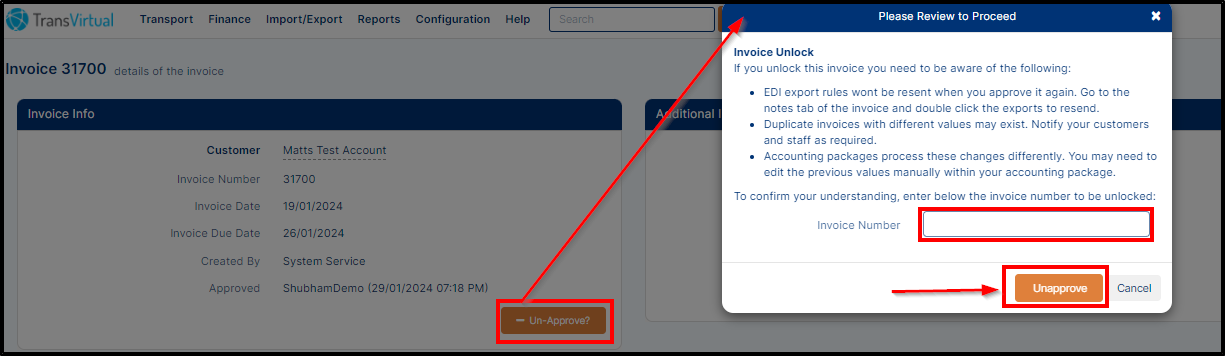
IMPORTANT: Read the warning carefully before un-approving an invoice. Always verify that invoice prices are correct in your accounts package.
- After un-approving the invoice, the invoice screen will update to allow edits. 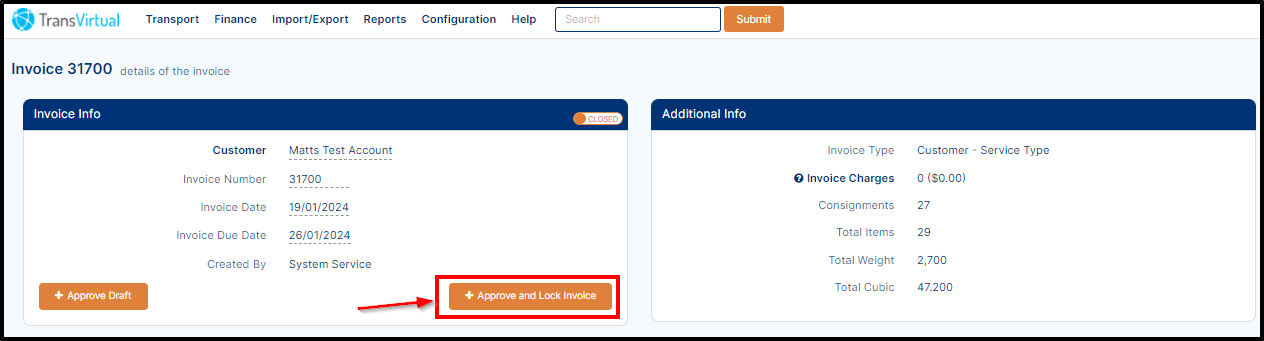
- The Un-approve button will now change back to Approve and Lock Invoice. You can edit any affected consignments on the invoice.
- Previously labelled consignments marked 'Price invoiced and locked' will no longer display this message, indicating they can now be edited. 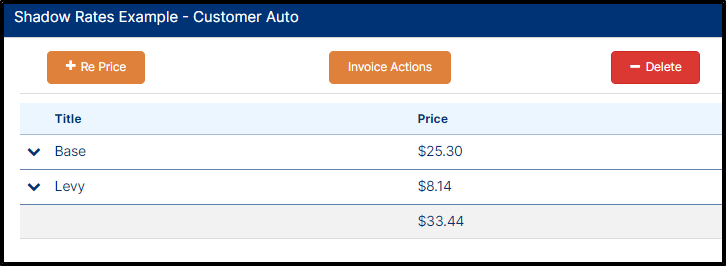
- Make any necessary changes, and ensure all prices are correct before approving and locking the invoice.
NOTE: Use the Delete button to remove any unnecessary consignment prices. If a price is deleted by mistake, it can be re-enabled as described below.
- If a price was deleted by mistake, click the Show Deleted checkbox to view it.
- After completing the step above, deleted prices will appear in red. To restore a price, click the red price and then click Activate to re-enable it for the consignment.
- A confirmation pop-up will appear. Click Yes, I want to. The price will reappear in orange, indicating it is pending. 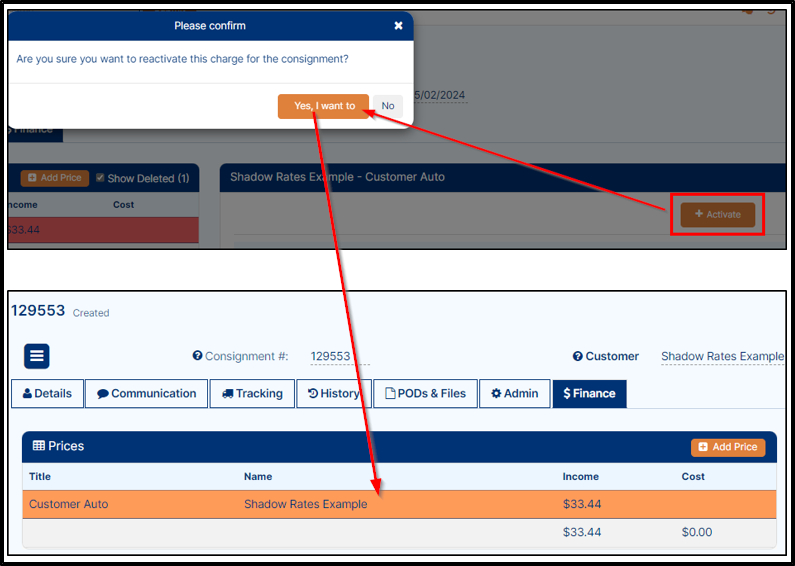
- Once the consignment is invoiced, it will appear in white, indicating the price is complete.
NOTE: When a deleted price is re-activated, it may not return to the original invoice. If needed, add or move it to the correct invoice.
- Use the Invoice Actions button to assign the consignment to a different invoice. You can select from existing invoices or create a new one.
- After selecting the desired invoice, the consignment will be assigned to that invoice. 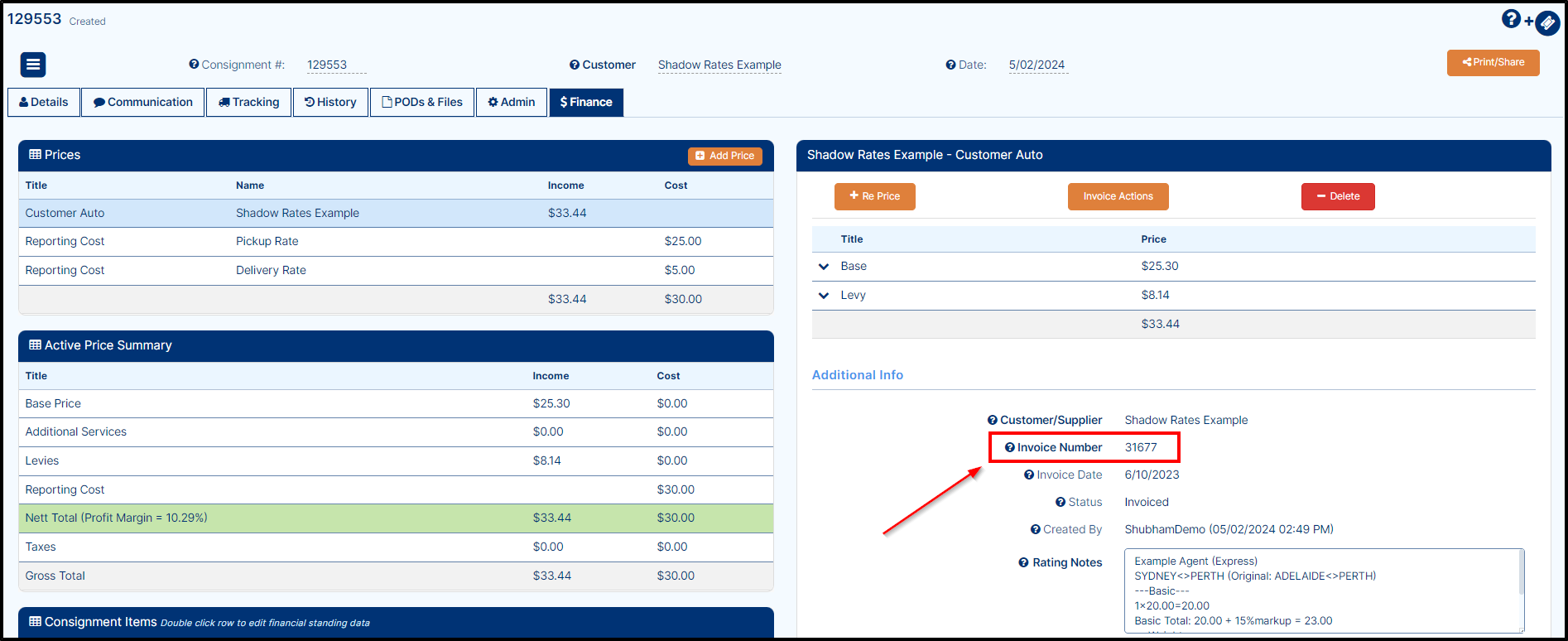
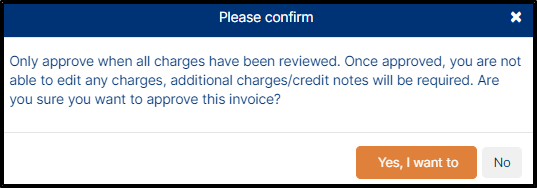
- Once all necessary changes have been made, you will need to approve and lock the invoice, to do so click on the Approve and Lock Invoice button, a confirmation pop-up will display, here click on Yes, I want to button to approve the invoice as shown below.

IMPORTANT: Approve and lock the invoice only after reviewing and confirming all details are accurate.
- If an invoice was previously approved and locked, triggered EDI rules will not resend automatically. To resend any EDI rules, open the Additional tab and double-click the relevant rule. 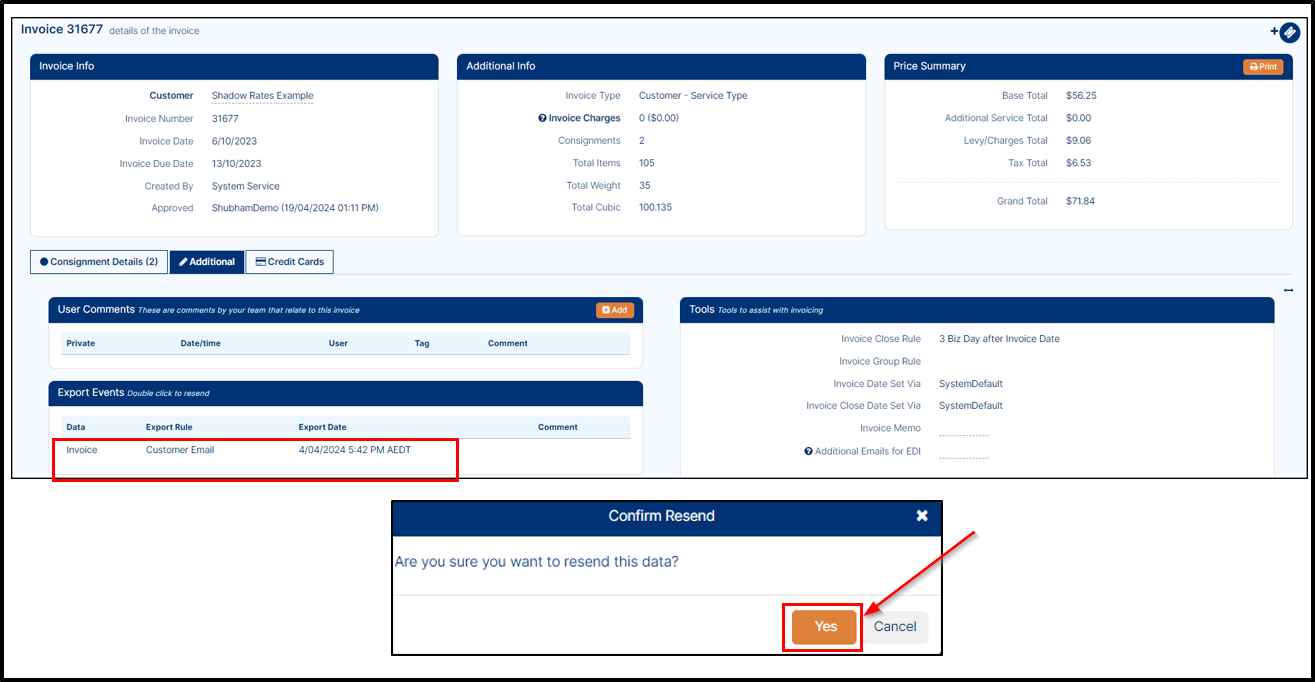
IMPORTANT: Resending EDI rules does not update the accounts package. Any updates must be performed manually.
4. Understanding Invoice Statuses & Colour Legend
Invoices in Transvirtual can have different statuses, and consignments may display various colour flags. The following section explains each invoice status and colour and its purpose.
INVOICE STATUS
DEFINITION
Open / Closed
An open invoice allows additional consignments to be added. It remains open until manually closed by a user or automatically closed by the system, if configured in global setup.
Navigate to Finance > Operational Tasks > Customer Invoices and select the applicable invoice to view its details.
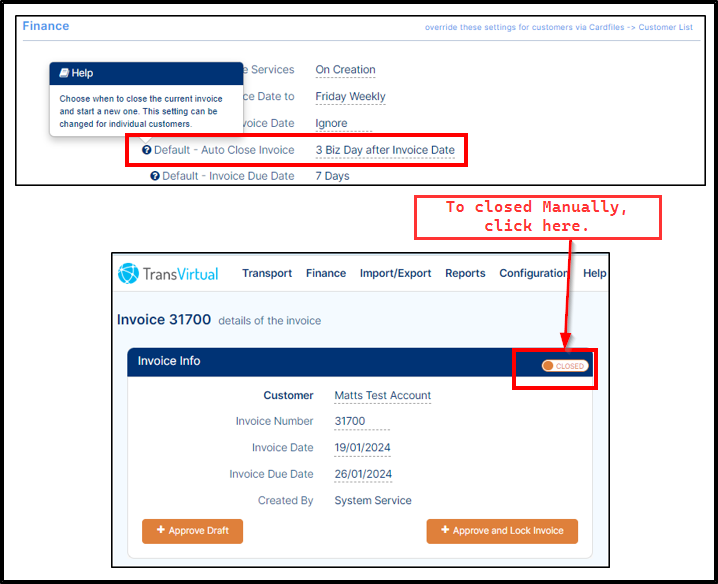
Closed invoices do not allow new consignments to be added automatically. This ensures users can review prices before finalizing the invoice.
Approved Draft
This function lets users create a draft invoice, which can trigger EDI rules to send the invoice to customers or agents.
Approved and Locked
This is the final stage of the invoice process. Approve and lock an invoice only after manually reviewing all prices. This status is typically used for EDI invoice exports, sending invoices via PDF or Excel to customers or agents.
INVOICE STATUS
An open invoice allows additional consignments to be added. It remains open until manually closed by a user or automatically closed by the system, if configured in global setup.
Navigate to Finance > Operational Tasks > Customer Invoices and select the applicable invoice to view its details.
Closed invoices do not allow new consignments to be added automatically. This ensures users can review prices before finalizing the invoice.
Approved Draft
This function lets users create a draft invoice, which can trigger EDI rules to send the invoice to customers or agents.
Approved and Locked
This is the final stage of the invoice process. Approve and lock an invoice only after manually reviewing all prices. This status is typically used for EDI invoice exports, sending invoices via PDF or Excel to customers or agents.
Consignments on an invoice may display different colour flags.
COLOUR LEGEND
DEFINITION
White
The consignment has no pricing issues and matches the expected system price.
Red
A consignment flagged in red indicates a pricing issue or pending approval for additional services. It may also appear red if the imported price differs from the system-calculated price. This signals that the consignment requires review.

Yellow
A consignment flagged in yellow indicates an imported price differs from the system-calculated price. This alerts the user to a price discrepancy.

Orange
A consignment flagged in orange indicates import issues, such as missing details compared to the system, or that the consignment was moved from another invoice.

COLOUR LEGEND
DEFINITION
White
The consignment has no pricing issues and matches the expected system price.
Red
A consignment flagged in red indicates a pricing issue or pending approval for additional services. It may also appear red if the imported price differs from the system-calculated price. This signals that the consignment requires review.
A consignment flagged in yellow indicates an imported price differs from the system-calculated price. This alerts the user to a price discrepancy.
Orange
A consignment flagged in orange indicates import issues, such as missing details compared to the system, or that the consignment was moved from another invoice.
For consignments flagged with pricing or import issues, users can manually review and correct them.
Invoices can be approved and locked with issues, but it is recommended to review all invoices before approval.
5. Using Invoice Filters - Customer & Supplier
These pages work similarly to the consignment search page. They allow you to view invoice results for a selected date range.
Depending on the page you are viewing (Customer Invoices or Supplier Invoices), you will see either customer or agent invoices.
Use the Status column to identify invoices that are open, closed, or approved and locked.
Both pages (Customer and Supplier) operate the same way. This article uses the Customer Invoice Search Filter to demonstrate the features.
- You can filter the invoice page in several ways. At the top-right, adjust the Date Range as needed.
- The grid will display invoices with an invoice date within the selected date range.
- You can edit the grid columns using the Column Selector button. 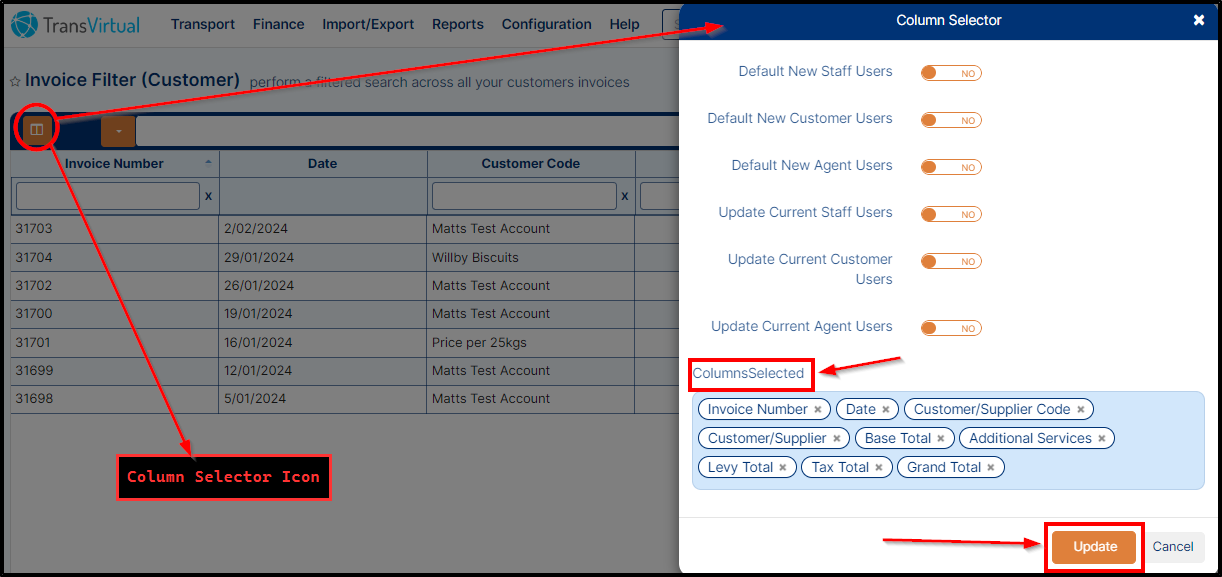
- After clicking the Column Selector button, a pop-up will appear. Select the desired columns from the Columns Selected field.
- Select the desired columns and click Update at the bottom of the window to apply changes. Refresh the page to see the updated column selection.
- If needed, you can export the grid results using the Export button at the bottom-left of the page.
- The Export button allows you to download the data as an Excel or CSV file using the drop-down options.
- To view an invoice in detail, double-click it to open. The invoice screen will display as shown below.
- The screen shows the invoice status, the consignments on the invoice, and relevant pricing information on the right side of the page.
- The Additional tab displays any EDI rules that have been triggered for the invoice.
COMMON ISSUES & TROUBLESHOOTING
Issue: Pricing not applied
Cause: Missing zones or freight items
Resolution: Assign zones or ensure freight items are defined
Issue: Invoice not updating EDI rules after edit
Cause: EDI rules trigger only once
Resolution: Manually resend EDI rules via Additional tab
FAQs
Q: Can I approve an invoice with flagged consignments?
A: Yes, but review all prices before approval.
Q: Will changes after approval update accounts packages automatically?
A: No, manual updates are required.